Getting eBooks from Calibre to Your Device Using Send to Device and the Connect/Share Functions.

Intro
Now that you have your Calibre database set up just the way you like it, you need to figure out how to get the books from your computer to your device. You can use the tethered or the over the air (untethered) method.
Tethered
Tethered means to physically attach your device to your computer using the USB cord. Calibre recognizes almost every mainstream device from the Kobo, Sony, nook, Kindle, Cybook, and the iOS devices.
Send to Device
Once you plugin the device, you should see a “Send to Device” icon on the menu bar.

If you don’t see it, you may need to modify your tool bar. CMD/CTRL + P -> “Toolbar” -> “The main toolbar when device is connected” -> Then drag over the “Send to Device” icon from the “available actions” column to the “current actions” column.
“Send to Device” gives you the option of sending the book to the main memory or the memory cards. If you always use the same action, such as sending the device to the memory card, you can set that as the “default” which means when you press the “Send to Device” button, the book will be sent to the memory card. You can use the drop down menu to change that feature.
This is where your special columns and saved searches come in handy. For instance, if you had a “TBR” column, you could filter for just those books that you want to read and then when all those books are shown, select and then send to your device. If you have modified the plugboards to change the title when the book is sent to the device, the action will take place when you hit the “Send to Device” button.
A special plugboard that you may want to create is a “genre” plugboard that corresponds with a “genre” or “tag” field. Using this in conjunction with iBooks can sort your books into separate categories on your iOS device. First, create a custom field that you will want to use to sort your iBooks. You may generically name it “genre” in case you want to use it for some other purpose otherwise you could name it “ibooks_cat” or something like that. For column type, select “Text, column show in the tag browser.” As with any new column, you will have to restart calibre. Go through and mark the books in your library. Alternatively, you can use the existing “tag” field. Then create a new plugboard: Format=epub | Device=apple | Source template {#usercolumn} or {tags} | Destination field=tags. Save and then “Apply”.
Saving to Disk
The Saving Books to Disk feature works great if you use an SD card and don’t want to tether your device to the computer. Instead you store all your files on an SD card. Saving to Disk feature allows you to save multiple files with one click of the button. The Calibre default is to save multiple files into separate folders. I really dislike this. Further, if you have only one device, such as a Sony or Nook, you don’t want to save Mobi files, you just want to save ePub files.
You can modify Calibre to change the default behavior so that it saves only one file (the ePub one) and with no folders. Go to Preferences (CMD/CTRL+P). Under the Import/Export set of features is “Saving books to disc”

Here is where you make your changes. I don’t want to save things separately. I just want one file to transfer over to my SD card but I do want to make sure my metadata is updated (1). In File Formats (2), enter EPUB instead of all and in the template (3), I have {title} – {authors}.

Now when I use the Save to Disc button, I get one file that is named Title – Author.epub. Again, use your saved searches or special columns to collect all the books you want to transfer to your SD card. Highlight the books and then click the “Save to Disk” button. (Tip: if you want to sort by recent and your device doesn’t have that feature, you can use the “{timestamp}” variable. First, you would want to format the date.
- %d = day
- %m=month number
- %b=month
- %m=year
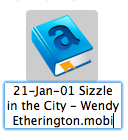
I like (%d-%b-%m) so in the “Format date as” box, I would put %d-%b-%m. In the Template box, I would put “ {timestamp} {title} – {authors} ” This results in the following output: “21-Jan-01 Sizzle in the City – Wendy Etherington.mobi” (I use mobi instead of epub, but you get the idea)
Connect/Share button. This button allows you to connect to a folder, iTunes, start the content server, and send via email. Connect to folder allows you to use a folder on the computer as a device. This is useful if your device is not recognized by calibre or you use an SD card.
The Connect to iTunes function allows you to send books to iTunes and then when you sync your iOS device, either via USB or now over the air, the calibre books will show up. You can use the “send to device” feature for your iThing, but perhaps you just prefer to use iTunes to collect all your media (particularly with the over the air synching and the cloud features).
You must have iTunes open on your computer in order for the “Connect to iTunes” function to work.
1. How do you want your iTunes to handle the books? There are two options. First, iTunes can just use the Calibre copy of the book. Second, iTunes can create a copy and store it in the iTunes media folder. The drawback of the second option is that it creates a second copy of the book. The drawback of the first option is that if you change the iTunes preferences to use only Calibre copy, this affects all your media. Thus if you download a music track from Amazon, you would have to manually move it into the iTunes media folder instead of having it automatically copied there when you import a track into iTunes. It depends on what is more important to you.
If you want iTunes to just use the Calibre copy, then in ITUNES open Preferences and then Advanced. Uncheck “Copy files to iTunes Media folder when adding to library.” Just remember this affects ALL MEDIA not just books.
2. Set up Preferences in Calibre.
- Change the output to EPUB in Preferences -> Behavior -> Preferred Output
- Change the output to iPad or iPhone in Preferences -> Conversion | Common Options -> Page Setup -> iPad
- Change the order in which ePub or PDFs are sent to iTunes
This last one is important. iBooks can read either ePubs or PDFs. If you have an iPhone or iTouch, PDFs are not as easy to read. If you have a book folder that contains both PDFs and EPUBs then you want to make sure the ePUB version is sent first. Or perhaps you don’t want to send PDFs at all. To do this you must go to Preferences -> Plugins. In the box, type “Apple device interface” and then click the “customize plugin” button at the bottom:
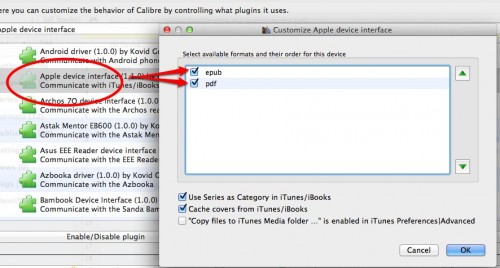
Use the green arrow buttons to order the formats to your preference. If you use the tags or a special user column for categories, uncheck “Use Series as Category in iTunes/iBooks.” Now you’ll be able to “Send to Device” with iTunes. You can click over to iTunes to see what books were sent over and how they are categorized.
Untethered
There are three ways of getting books to your device without the use of USB cord or an SD card.
Connect to iTunes
The first one was for iThings using the Connect to iTunes feature. Under iOS 5, you can sync your iThings over the air. Simply gather up the books you want on your iThing, Send to Device, and then institute an over the air sync.
Content Server
Calibre has a built in content server. You can share books over the net by starting the server. Preferences -> Sharing over the net -> Start Server. You can check the box “Run server automatically when calibre starts.”
Many Android and iOS apps will recognize the Calibre server automatically. If not, you will need to know the IP address of your computer and manually add the calibre server to your APP. You will need to open terminal on your Mac or PC.
- PC: Click Start -> Run. In the box type cmd. A black window should open. Type “ipconfig all”. A bunch of numbers will spew out. You are looking for IP Address. It is usually something like 192.168.0.xx.
- MAC: Spotlight and type “Terminal”. Click on the Terminal App. Type “ifconfig”. A bunch of numbers will spew out. Look for “inet”. It is usually something like 10.0.1.xx.
Take the IP address of your computer and enter it into the app followed by :8080. So it would be something like http://10.0.1.88:8080.
You should be able to access a searchable database of your Calibre library. This only works if a) you have calibre running and b) you can connect to your wifi network. See this post for information about port forwarding and DNS redirect services which allows you to access Calibre from the internet.
Sharing books by email
This is my most used feature on Calibre particularly since Amazon has instituted Personal Document Service for the iOS Apps as well as the Kindle devices. Basically this feature does exactly what it says. It sends books by email. Read more about PDS and Amazon here.
Enter the emails to which you want a book sent along with the formats that you want to send. Here is my setup:

I don’t mind sharing these emails with you because only authorized folks can send documents to my devices. As you can see, the top one is my default but I can, via the drop down menu, send a book to any one of these email addresses. Plus, you can change the default by selecting the preferred email address and hitting the “make default” button on the right. Calibre has built in email server configurations for gmail and hotmail. It’s worth signing up for one of those email services just for facilitating the sending of books to yourself.
I hope this January series of articles about Calibre has helped you get an idea of how to start to harness this amazing piece of software to manage your book collection. There are so many other ways to use Calibre and this series just scratches the very surface. Thanks for listening. Feel free to ask any questions. If I don’t know the answer, I bet there is someone who does.
Additionally, I am always looking for topics or even guest reviews of devices, products, and general ebook-y stuff for Sunday. Please email jane at dearauthor.com if you have an idea, a question or a blog post. Thanks!

I just wanted to thank you for doing these posts. I love Calibre and your instructional posts have been invaluable. Even if I don’t use the information right away, it’s been nice to have a good resource to come back to with good clear instructions. Thank you!
Can you do a column like this on reading lists, and how to make catalogs of books based on those reading lists?
I can’t tell you how valuable this series you’ve been doing has been for me! Thank you so much.
I really like these posts about calibre and ebooks. Calibre is so awesome; I can’t imagine what I’d do if there wasn’t a calibre out there. I think I’ve finally gotten into a nice way of organizing but when I read these posts I always find something new that I didn’t know :) Thanks for having these and keep them coming! :)
@becca Using the reading list plugin?
I’ve been using Calibre since I got my first ebook reader in 2008 and you still manage to explain more clearly than the user manual does – and make me aware of potentially useful bits I haven’t run across yet. Thank you!
@Jane: yes – I’ve figured out how to make a catalog based on my TBR list, but there’s a lot to it that I don’t understand about reading lists and the rules you can set up for them.
ETA: what I’d like is a way to set up a custom column that would indicate what reading list a book is on, but I don’t know whether that’s possible.
@Jane: Do you update Calibre as often as they release updates? It seems like they have a new version every week. Does updating break any of these neat things you have been teaching us? Or do you stick with an old version that works for you?
@Jenn I don’t update Calibre as often as they release updates. I will usually go and check out what the updates are before doing so, but I haven’t had them break the things that I’ve posted about. If anything, the new releases bring new functionality. For instance, the second to last new release brought the ability to use plugboards with the “send to email” feature.
Funny, I just spent time figuring this out on my own a few days ago. I have been using iBooks now that Stanza is broken on my iOS4 device.
@Jane: Calibre updates once every few weeks, every time a minor change is added. It is simply not worth the bother to update if you ask me, since you will hardly notice a difference. I only upgraded from a six-month old version when I needed support for the new azw3 kindle format.
But by all means update if there’s a new feature you want. They never broke anything that I am aware of — why would they? They are open source, geek developers; they take pride in their work and want it to be perfect.
I just tried to use the content server with my ipad, I could look at the calibre library fine, but when I clicked ‘get’ for a selected book the browser was not able to as “webpage not available” yet I had been looking at the book using the content sever seeing the info. The webpage was available to show the list! Any ideas?
ps- calibre companion works fine on my ANDROID tablet!?
@scott porter: Calibre Companion is an Android only App.
As for using the content server with iPad, I assume you are using something like MegaBooks? Possibly the only formats available is mobi? That would not be compatible with the MegaBooks program.
sorry, no. I am using iBooks and Kindle. The content server will ask which app to open the book in and you have the choice of which book format to send from Calibre.
I got an answer from Calibre this morning- it seems the browser I was using – Chrome, has a problem. I had originally had difficulty with Safari but that resolved itself.
Thanks for replying.
I am having problems emailing books. I have done it before and I’m not doing anything differently. The job status is “working” but the progress is “unavailable”
I set my Sharing books by e-mail. But it will not let me back in
to change or add. How do I do this ?
@IRENE: Restart Calibre and try again.
Hi there,
Thanks for helping me decide to buy calibre companion for my nexus 10. The Content Server is a winner, BUT, how do I put ALL my libraries to be searchable in the content server? I have about 30 libraries :(
I cant seem to get my converted file from calibre to my iphone (I use kindle for iphone). There is not a ‘send to device’ option in my menu. I cannot for the life of me understand the directions to get it to show up. Please help!!! My stomach’s all twisted up in frustration LOL!
You need to send it to the email address listed in ‘manage my kindle’ > ‘manage my devices’ at amazon. then in calibre use the connect/share menu/icon option >email to.
you must have set this up in calibre also
in calibre set up email with preferences > change behavior > sharing > sharing by email
I have a kindle and use my pc to email books to the kindle via Calibre.
I was just given a nook. Is there a way to email books to the nook or is that for kindle only?
Is it possible to sync the number of the page in a book i´m currently reading betting devices?
For exemple: I am reading a book in Calibre in my pc, and then continue reading i my table in the page i left when i was in the pc?
@Daniel Brandao: Yes, there is and I think you have to use Dropbox but I’m not familiar with how it works. Check in over at MobileRead.
They´re saying that is only possible with google play books. I´ll give it a try
Thank you
I had some friends tell me to ‘mail’ a copy of the book to my kindle address like a document and then the devices would keep them in sync. I haven’t tried it yet… check your amazon account for the kindle email address for documents and mail to each device….
BTW, check out how to do the free convert from email.